



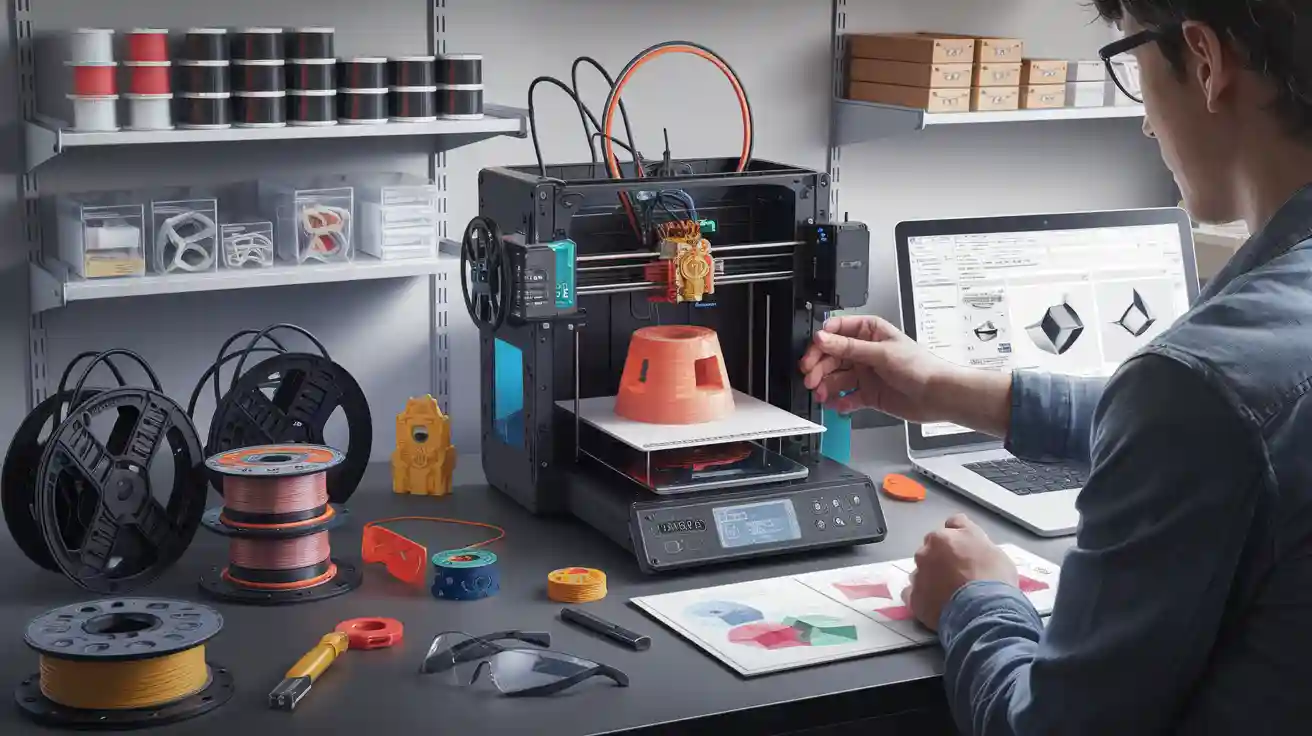
You want to start using your first 3d printer, but you may not know what you need. Don't worry. You do not have to be a pro. Here is a short list of things you need for easy 3d printing:
- 3d printer
- Filament and a place to keep it with desiccant packs
- Filament dehydrator
- Printer enclosure
- Ventilation or a carbon filter
- Bed cleaning items like rubbing alcohol and lint-free wipes
- Metal scraper, wire cutters, tweezers
- Brass brush, deburring tools, sandpaper
- Digital calipers
- Maintenance tools and extra parts
You can set up your 3d printer and feel sure about it. 3d printing is easy when you have the right tools. You do not need special skills to get started.
3D Printer
Types of 3D Printers
When you look for your first 3d printer, you will see two main kinds. FDM printers use melted plastic to make your 3d models one layer at a time. These are good for bigger things and simple projects. Resin printers use liquid resin and light to make very detailed 3d prints. They are best for small and fancy designs like miniatures. Here is a table to help you pick:
|
Aspect |
FDM Printers (Beginner-friendly) |
Resin Printers (Higher Detail) |
|---|---|---|
|
Print Quality |
Good for strong parts |
Best for tiny details |
|
Ease of Use |
Easy to set up and use |
More steps, needs cleaning |
|
Safety |
Needs some ventilation |
Needs gloves and masks |
|
Mess & Cleanup |
Simple to keep clean |
Messier, needs careful work |
|
Cost |
Cheaper materials |
More expensive materials |
|
Build Volume |
Can print bigger things |
Prints smaller, detailed items |
Tip: If you want to make toys or big things, try an FDM 3d printer. If you like small, detailed models, pick resin.
Key Features
You want your 3d printer to be simple and work well. Look for these things:
- Strong frame with a solid Z-axis so prints do not shake.
- Manual bed leveling with four screws for better prints.
- Easy to clean and fix. Stay away from printers with many tiny parts that trap resin or filament.
- Good safety like a closed area and ventilation.
- Works with common materials and lets you use other brands.
- Easy software that uses popular 3d files like STL and OBJ.
- Helpful community and clear guides.
|
Feature Category |
Important Features for Beginners |
|---|---|
|
Printing Technology |
FDM or resin; pick what you need |
|
Technical Specs |
Print size, speed, and what materials it uses |
|
Connectivity |
USB, Wi-Fi, or cloud options |
|
Maintenance & Safety |
Easy to clean, safe to use |
|
User Experience |
Quiet, easy to change materials |
|
Support & Learning |
Good guides, helpful people |
Budget Tips
You do not have to spend a lot to get a good 3d printer. Most starter printers cost between $299 and $599. Here are some ways to save money:
Choose a 3d printer that comes mostly built. You will set it up faster and make fewer mistakes.
- Use cheap filament like PLA for your first prints.
- Watch out for extra costs like new parts and more materials.
- Keep your 3d printer clean and working to stop repairs.
- Compare printers and read reviews before you buy. Take your time.
Remember: The cheapest 3d printer may not be the best. Pick one that fits your needs and is easy to use.
Materials
Filament Types
When you start 3d printing, you will see many 3d printer filaments. Each type of material has its own strengths and weaknesses. Here's a quick look at the most popular ones for beginners:
|
Filament Type |
Printability Level |
Strength |
Health Risk |
Advantages |
Disadvantages |
|---|---|---|---|---|---|
|
PLA |
Beginner |
Weak |
Safe |
Easy to print, lots of colors, safe for home use |
Brittle, melts in sunlight |
|
PETG |
Beginner (step-up) |
Average |
Safe |
Stronger than PLA, flexible, good for parts |
Needs careful setup, can string |
|
TPU |
Intermediate |
Strong |
Safe |
Very flexible, tough, good for bendy prints |
Harder to print, sticks to bed |
|
ABS |
Medium difficulty |
High |
Not food safe |
Strong, durable, good for tough jobs |
Warps easily, needs heat and ventilation |
Most people start with PLA. It is easy to use and safe for home or school. PETG is a good next step if you want stronger prints. TPU is great for flexible things, but it takes practice. ABS is tough but tricky, so you might want to wait before trying it.
Storage Tips
You want your 3d printing materials to last. Moisture can ruin filament and cause bad prints. Here are some simple ways to keep your material in top shape:
Store filament in airtight containers to keep out humidity and dust.
- Add silica gel packs and change them often.
- Keep your 3d materials in a dry place with low humidity.
- Use vacuum-sealed bags for long-term storage.
- Place spools on shelves away from sunlight and heat.
- Try dry boxes with built-in heaters or desiccants.
- Label each spool with the date and type of material.
- Check humidity with a small hygrometer.
If filament feels damp, dry it in a filament dryer or oven at low heat.
Tip: Dry filament prints better and lasts longer. Make drying and storing part of your regular 3d routine.
Choosing Materials
When you choose your materials, think about what you want to make. PLA works well for models, toys, and simple parts. It prints at low temperatures and rarely warps. PETG gives you more strength and some flexibility, so it fits outdoor or working parts. ABS is strong and heat-resistant, but it needs a heated bed and good airflow because it can give off fumes. TPU is best for flexible items, but it is harder to use.
Some 3d printing materials are better for the environment. PLA comes from plants and breaks down faster than others. You can also find filaments made from recycled plastic or wood fibers. Always print in a space with good airflow, especially if you use ABS or other materials that release fumes.
Your material choice affects print quality, safety, and even the planet. Start simple, then try new materials as you learn more about 3d printing.
3D Printing for Beginners
Essential Tools
When you start 3d printing, you need some tools. These tools help you print safely and easily. You do not need a lot of tools. Just a few important ones will do most jobs. Here is what you should keep close:
Build plate adhesion tools: Use a glue stick or blue tape. Adhesion sheets also help prints stick to the bed.
Print removal tools: Use a spatula or palette knife to lift prints. A print removal blade helps with stuck prints.
Post-processing tools: Get a deburring tool or knife. Use a cutting mat, pliers, and sandpaper to clean your models.
Measurement tools: A digital caliper checks the size of your prints. It helps you fix your designs.
Maintenance tools: Use light machine oil, screwdrivers, and hex keys. These keep your printer working well.
Miscellaneous tools: Tweezers help with small parts and stray filament. Lint-free cloths and isopropyl alcohol clean the build plate. Filament storage containers keep material dry. Masking tape and acetone help with bed prep and cleaning. An Exacto knife, deburring tools, and carving tools are good for detail work.
Tip: Keep your tools in a small box near your printer. This saves time and keeps your tools safe.
Workspace Setup
A good workspace makes 3d printing safer and easier. You do not need a big room. Plan your space before you start printing. Think about these things:
|
Requirement |
Minimum Specification |
|---|---|
|
Floor space |
At least 9 m² |
|
Ceiling height |
2.4 m or higher |
|
Door width |
0.9 m (90 cm) |
|
Clearance around printer |
50 cm (20 inches) on all sides |
|
Flooring |
Solid, smooth, level, anti-static |
|
Electrical outlets |
Two standard outlets, proper grounding |
|
Ventilation |
Four full air changes per hour |
|
Temperature |
16–25°C (best at 22°C) |
|
Humidity |
40–60%, non-condensing |
If you live in a small place, pick a spot near a window. Use an air purifier to lower fumes. Put your 3d printer on a strong table. The table should hold the printer's weight and vibration. Keep your material dry and close, but away from heat and sunlight. Use shelves or bins to organize filament and tools. Good lighting helps you see problems and details.
Noise can bother people, so keep your printer away from bedrooms. Make sure you have enough outlets for your printer and other gear. Always keep a first aid kit nearby for small cuts or burns.
Note: A clean workspace helps you avoid mistakes. It keeps your 3d printing projects running well.
Safety Gear
3d printing is safe if you use the right gear. Some materials make fumes or tiny bits. Hot surfaces can burn you. Use these things to stay safe:
- Respirator or mask: A fit-tested respirator stops you from breathing bad fumes and tiny particles. This is important when printing with ABS or resin.
- Gloves: Nitrile or neoprene gloves protect your hands from chemicals and heat.
- Eye protection: Wear splashproof safety goggles to protect your eyes from liquid and flying bits.
- Protective clothing: Flame-retardant or chemical-resistant coveralls keep your skin safe from chemicals and heat.
- Ventilation: Use exhaust fans, HEPA filters, or carbon filters to clean the air.
- Printer enclosure: An enclosure keeps fumes and particles inside. It lowers the chance of burns or injuries.
Other safety tips are tying back your hair and not wearing loose clothes. Wash your hands after touching 3d materials. Always follow your printer's instructions. Do not leave your 3d printer running alone for a long time.
Safety first! The right gear keeps you safe from burns and fumes. Make safety part of your printing every time.
A neat setup, good tools, and safety gear make 3d printing easier for beginners. You will fix fewer problems and have more fun. Keep your workspace clean. Check your printer often. Store your material the right way. These habits help you get great results and keep your 3d projects safe and fun.
How to 3D Print
You want to know how to 3d print your first project. Let's break it down into simple steps so you can start printing right away. You'll learn how to create or find a design, prepare your files, use print preparation software, and get your printer ready for action.
3D Model Files
Before you start printing, you need a 3d model file. This file tells your printer what to make. Most beginners use STL files because they work with almost every printer and are easy to handle. OBJ files add color and texture, which is great for artistic projects. Newer formats like 3MF and AMF let you use more materials and colors, but you'll see STL the most.
You have a few ways to get these files:
Download free or paid models from online repositories. Popular sites offer millions of choices, from toys to tools.
Use design software to make your own model. Simple programs let you drag and drop shapes to build what you want.
Scan real objects with a 3d scanner. This method copies physical items into digital files.
Here's a quick list of places where you can create or find a design:
- Thingiverse
- Cults3D
- GrabCAD
- MyMiniFactory
- Pinshape
- Thangs
- Free3D
- Sketchfab
- CGTrader
- YouMagine
- TurboSquid
- Yeggi (searches many sites)
Tip: Start with a free STL file from a trusted site. You'll get a feel for how to 3d print without worrying about design mistakes.
Slicing Software
Once you have your 3d model file, you need to use slicing software. Slicing is the process that turns your model into instructions your printer understands. The slicer cuts your model into thin layers and sets up the path for the printer nozzle or laser.
Here's how slicing works:
- Open your 3d model file in the slicer.
- Choose your printer and material settings.
- Adjust layer height, speed, and supports if needed.
- Preview the sliced layers to check for problems.
- Save the sliced file to your USB or SD card.
You'll see different slicers with unique features. Some are easy for beginners, while others offer more control. Here's a table comparing popular options:
|
Slicer |
Ease of Use |
Advanced Features |
Community Support |
Update Frequency |
Printer Compatibility |
|---|---|---|---|---|---|
|
Cura |
5/5 |
4/5 |
5/5 |
5/5 |
5/5 |
|
PrusaSlicer |
4/5 |
5/5 |
4/5 |
4/5 |
4/5 |
|
Bambu Studio |
5/5 |
4/5 |
3/5 |
5/5 |
2/5 |
|
Obico Online |
5/5 |
3/5 |
3/5 |
3/5 |
2/5 |
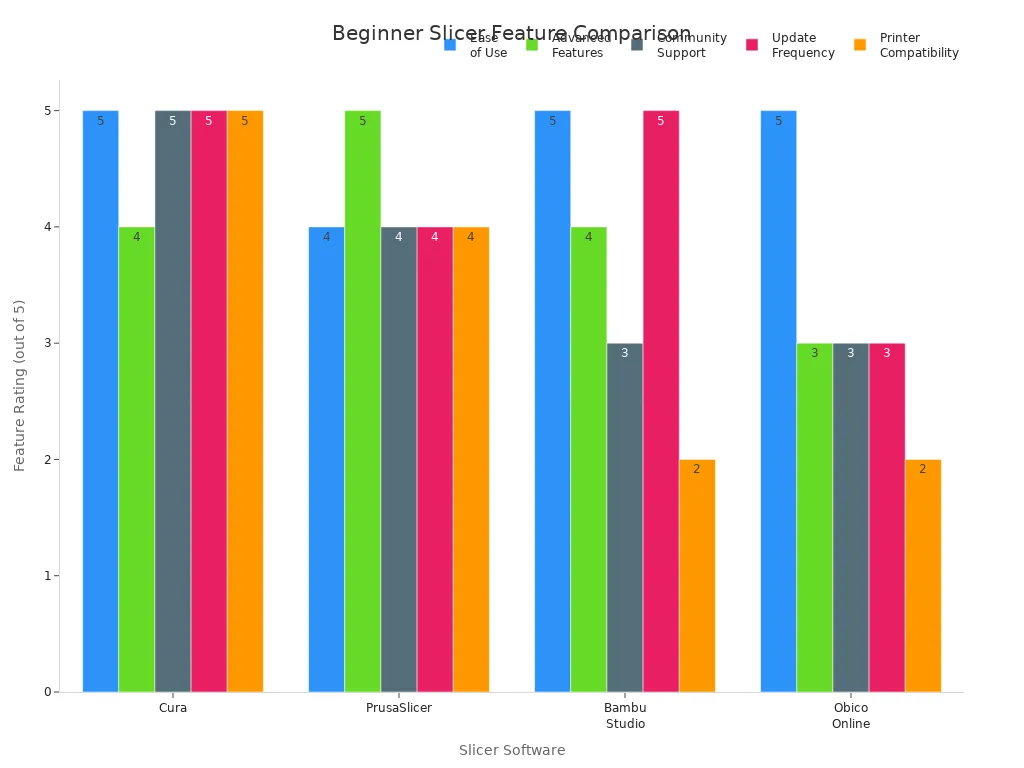
Note: Slicing is a key step in how to 3d print. Always check your sliced preview before you start printing. This helps you catch mistakes early.
Most entry-level printers use USB or SD cards for file transfer. You save your sliced file, plug the card into your printer, and start printing. Wireless options make things easier, but USB and SD cards work well for most beginners.
CAD and Design Tools
If you want to make your own models, you'll need CAD and design tools. These programs let you build, change, and fix 3d shapes. You don't need to be an expert to start. Many tools are simple and run in your browser or on your tablet.
Here's a table showing beginner-friendly options:
|
Tool |
Accessibility for Beginners |
Key Features and Benefits |
|---|---|---|
|
Tinkercad |
Browser-based, beginner-friendly, intuitive drag-and-drop interface |
Simple shape building; no advanced skills needed. |
|
Fusion |
Free for students, hobbyists; cloud-based platform |
Advanced modeling, simulation, and remote access. |
|
AutoCAD |
Free educational access for students and educators |
Powerful 2D/3D design; flexible web version. |
|
Shapr3D |
Intuitive, cross-device (iPadOS, macOS, Windows); minimalist UI |
Fast modeling; mobile CAD; easy for teams. |
You can start with a drag-and-drop tool and move to more advanced software as you learn. Try making simple shapes first. Practice changing size and adding details. This helps you understand how to use a 3d printer and how to 3d print your own ideas.
Tip: Learn basic modeling skills. You'll fix problems faster and make better prints. Slicing and design go hand in hand for great results.
Step-by-Step: How to 3D Print
- Choose or create a 3d model file (STL, OBJ, or other).
- Open the file in your slicing software.
- Set up your printer and material settings.
- Preview the sliced layers for errors.
- Save the sliced file to USB or SD card.
- Insert the card into your printer.
- Start the print and watch the first layer closely.
- Remove the finished print and check for quality.
Slicing and preparation make a big difference in how to 3d print successfully. Good print preparation software helps you avoid failed prints and wasted material. If you want to improve, try new slicing settings and practice with different designs.
Remember: The more you practice how to 3d print, the better your results. Keep learning, keep experimenting, and enjoy the process.
3D Printing Tips
Maintenance
You want your 3d printer to work well for a long time. Doing regular care helps your 3d prints come out better. Here is a table that shows the main jobs and how often to do them:
|
Maintenance Task |
Description |
Recommended Frequency |
|---|---|---|
|
Cleaning Nozzle and Build Plate |
Take off old material so prints stick better. |
Every few prints; deep clean monthly |
|
Inspect Glass Plates/Build Surfaces |
Check for cracks or chips that can mess up prints. |
Before each print |
|
Lubrication of Rods and Rails |
Add oil so parts move smoothly and last longer. |
Monthly or when needed |
|
Belt Tension Adjustment |
Make sure belts are tight for good movement. |
Every week or month |
|
Tightening Components |
Tighten loose parts so nothing shakes or breaks. |
Every week or two |
|
Firmware Updates |
Get new features and fix bugs with updates. |
Every few months or when released |
|
Cable Inspection |
Look at cables to stop problems and keep things safe. |
Monthly |
|
Bed Calibration and Leveling |
Level the bed so the first layer sticks well. |
Before prints and after changes |
|
Resin Printer Specific Tasks |
Clean resin vat and check UV light for resin printers. |
After every print |
|
Visual Inspection for Deformed Parts |
Look for bent or cracked parts before they get worse. |
Every few months |
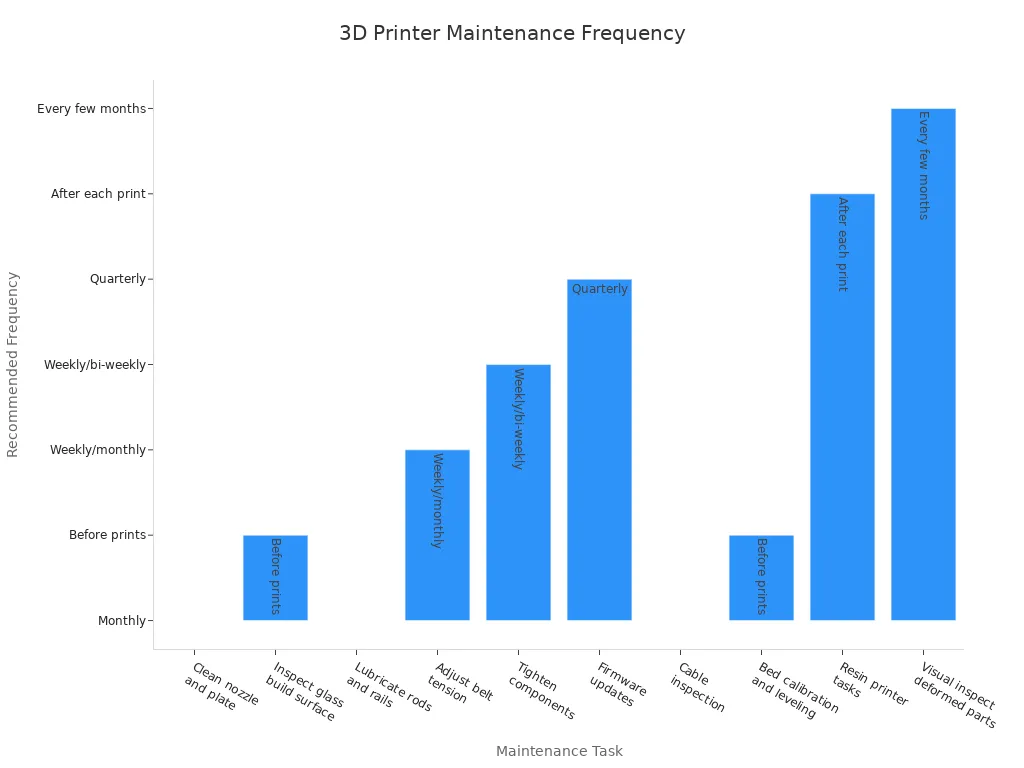
Keep cleaning tools close by. Use isopropyl alcohol to wipe fast. Try a wire brush or scraper for stuck bits. Put oil on rods and rails when needed. Tighten screws and belts often. These steps stop most 3d printing problems.
Post-Processing
When your 3d print is done, you can make it look nicer. Post-processing makes your print stronger and better looking. Here is a table with common ways to finish your prints:
|
Post-Processing Technique |
Description & Effect on Appearance and Durability |
|---|---|
|
Support Removal |
Take off supports to make your model look clean. |
|
Sanding |
Rub the surface to make it smooth. |
|
Chemical Smoothing |
Use vapor to make ABS prints shiny and smooth. |
|
Painting and Coating |
Add paint or clear coat for color and protection. |
|
Infiltration |
Fill holes with resin or epoxy to make it stronger. |
|
Curing and Heat Treatments |
Use heat or UV light to harden your print. |
|
Metal Plating |
Cover with metal for extra shine and strength. |
|
Reinforcement Techniques |
Add rods or layers to make your part tougher. |
|
Advanced Finishing |
Use special tricks like water transfer for cool looks. |
Start by taking off supports. Sand the print with fine sandpaper. If you use ABS, try vapor smoothing for shine. Paint your print to add color and protect it. Fill any gaps with resin if you need to. These steps help your prints last longer and look better.
Troubleshooting
Sometimes 3d printing has problems. Do not worry. Most problems are easy to fix. Here are some common issues and what you can do:
- Bed adhesion problems: Level the bed and clean it well.
- Nozzle clogs: Clean the nozzle and use dry filament.
- Warping and corner lifting: Change bed heat and use glue or tape.
- Layer shifting: Check belts and use a strong table.
- Stringing: Change retraction settings in your slicer.
- Under extrusion: Make sure filament moves well and nozzle is clear.
- Incorrect settings: Fix bed leveling, nozzle heat, and print speed.
- Wet filament: Keep filament dry in sealed boxes and dry it if needed.
- Printing too fast or hot: Lower speed and heat for better prints.
- Poor support or infill: Change slicer settings for more support or infill.
- Maintenance: Clean and check your printer often.
You can stop many problems by tightening belts and pulleys. Oil the rods when needed. Put your printer on a sturdy table. Use test prints to find problems early. Update firmware for better control. If you need help, ask online. Keep trying-each print helps you learn more.
You now know what you need to start your 3d printing journey. You have the tools, workspace tips, and safety gear to help you succeed. Many beginners face small problems, but you can solve them with simple fixes:
|
Challenge |
Quick Fix |
|---|---|
|
Messy surfaces |
Add supports in slicer |
|
Layers not sticking |
Level bed, raise temperature |
|
No filament coming out |
Unclog nozzle, check filament |
Take your first step. Try new ideas and enjoy the process. 3d printing lets you create, learn, and have fun every day!