




How to Use 3D Printer: Bed Leveling, Slicer Settings, and First-Layer Success

If you want to learn how to use 3d printer effectively, start by preventing poor first layers and conserving material. Make sure to check bed leveling, slicer settings, and first-layer setup, as these are key steps in how to use 3d printer for successful prints. These actions help your prints adhere properly and look smooth. For businesses, understanding how to use 3d printer basics saves money and improves print quality, making it easier to produce multiple prints at once. Even if you're new, mastering how to use 3d printer can lead to great results.
Key Takeaways
- Always check the bed leveling before you print. A level bed helps the print stick better. It also makes layers smoother. This saves you time and material.
- Change slicer settings with care. Pick the right layer height. Set the correct temperature and speed. These steps help you get good prints. They also help you waste less material.
- Pay attention to the first layer. The first layer must be strong for a good print. Clean the bed before you start. Make sure the nozzle is at the right distance. This helps the print stick better.
- Use a checklist before you print. This helps you avoid mistakes. It makes sure your printer is ready to work well.
- Think about using auto-leveling. Auto-leveling saves you time. It makes prints more consistent. This is very helpful for businesses that print a lot.
How to Use 3D Printer for Reliable Prints
Good 3D printing depends on three main things. These are bed leveling, slicer settings, and first-layer setup. You need to learn these steps well. This helps you get steady results and use less material. It also helps you save money. Many experts say most print problems start here. If you want to use a 3D printer for work, you must know why these steps matter.
Bed Leveling Basics
Bed leveling keeps the nozzle at the right spot. This stops problems like bad sticking, bumpy layers, and bent prints. If the bed is not level, one side may stick but the other side may not. This wastes material and time.
Tip: Always check the bed before you print. A level bed saves time and money.
Some common problems are:
Bed adhesion issues make prints come off the plate.
A bed that is not level causes uneven layers and shape mistakes.
A bent bed makes prints less accurate.
For business users, leveling the bed often means fewer failed prints. It also lowers costs. You can make more prints without worrying about mistakes.
Slicer Settings Overview
Slicer settings tell the printer how to use your model. You change things like layer height, temperature, and speed. These must match your material and design. If you set the slicer wrong, you may get too much or too little filament. You may also get overheated prints. These problems lower print quality.
Causes | Problems | Solutions |
|---|---|---|
Nozzle too far from bed | Filament does not stick; lines are thin | Lower nozzle height; level the bed again |
Bed not level | First layer is uneven; sticking is not steady | Level the bed by hand or with a tool |
Print speed too fast | Filament curls or lifts; sticking is poor | Slow down first layer speed (15–30 mm/s) |
Set the nozzle temperature high enough to melt the filament. Do not set it too high or you will get strings or blobs. The bed temperature helps the first layer stick. Room temperature can also change print quality. For businesses, good slicer settings mean less waste and more prints.
First-Layer Essentials
The first layer is very important. It decides if your print will work or not. You need good sticking, smooth lines, and the right nozzle distance. If the first layer does not stick, the whole print may come off or bend.
Common first-layer problems are:
Bad sticking
Bent edges
Bumpy surfaces
Gaps in lines
Elephant's foot (wide base)
You can fix these by:
Cleaning the bed and picking the right surface.
Setting the nozzle distance with bed leveling and Z-offset.
Adjusting flow rate and checking extrusion steps.
Changing print speed and layer height.
If you want to use a 3D printer for steady work, focus on the first layer. Businesses get fewer failed prints, less downtime, and better quality.
Note: Good first layers give steady results and lower costs. This is very important for big companies in telecom, EPC, and distribution.
Bed Leveling Steps
Manual Leveling
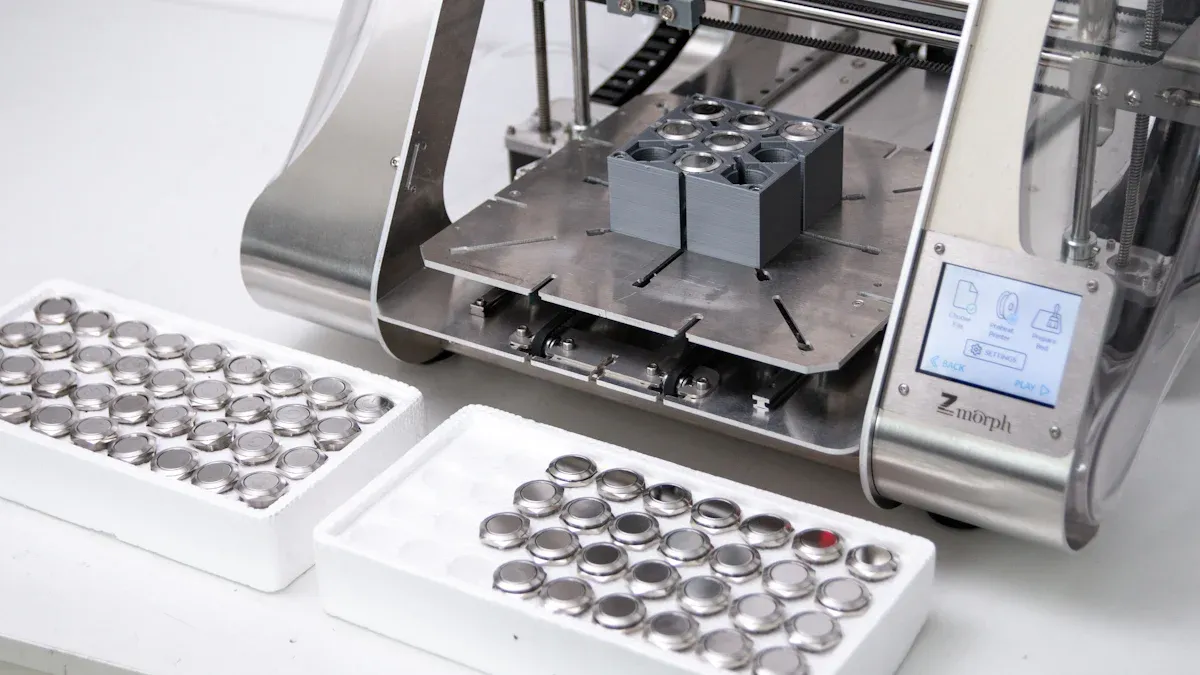
Manual bed leveling lets you control print quality. First, get your workspace ready. Put the printer on a flat table. Make sure there is no dust. Follow these steps to level the bed:
Tighten each screw at the bed corners. Leave space to loosen them later.
Move the Z axis so the nozzle goes to the home spot.
Slide the printhead over each screw. Put a piece of paper between the nozzle and bed.
Loosen the screw until the paper moves with a little resistance.
Do this for all corners to keep pressure even.
Check every corner again. Adjust if you need to.
Start a print. Make small changes while the first layer prints.
The best nozzle distance for the first layer is 0.2 mm. Use this table for quick help:
Measurement | Value (mm) |
|---|---|
Optimal Nozzle Distance for First Layer | 0.2 |
Distance Between Print Sheet and SuperPINDA | 1.5 |
Recommended Z-offset Range | -0.600 to -0.800 |
Manual leveling helps you learn about 3d printer hardware. You can find problems early. For businesses, this means fewer failed prints and less waiting.
Auto-Leveling
Auto-leveling uses sensors to check the bed's surface. The printer sets the nozzle height by itself. This saves time and makes prints more even. It is good for big print jobs. To use auto-leveling:
Turn on auto-leveling in the printer menu.
Make sure the sensor is clean and plugged in.
Start auto-leveling. The printer will check many spots on the bed.
Look at the first layer. Change the Z-offset if you need to.
Auto-leveling is great for B2B users. It helps make more prints and lowers mistakes.
Troubleshooting Bed Issues
Bed leveling problems can cause bad prints. Try these steps to fix common issues:
Uneven First Layer: Change the bed screws or use auto-leveling. Make sure a paper slides under the nozzle with a little resistance.
Bow or Dip in the Center: Tighten screws under low spots. You can also use a glass or aluminum bed for better support.
Warped Print Bed: Turn on heat bed compensation or use mesh bed leveling to fix bumps.
Here are common print problems and how to fix them:
Print Defect | Recommended Solution |
|---|---|
Failure messages during bed leveling | Look for dirt, reset the Z-axis, check the sensor and wires. |
Sensor did not trigger | Remove dirt, do Z calibration. |
Sensor triggered too high | Make sure the hotend is in all the way, reset Z. |
Sensor disconnected or cable broken | Check the sensor plug and cable. |
A level bed gives you good prints and less waste. This is important for companies that need steady results and want to save money.
Slicer Settings Guide
Knowing slicer settings helps you get good 3D prints. You can change how your print looks and how fast it finishes. You also control how much it costs. If you work for a business, the right slicer settings save money. They help you waste less material and get better results.
Key Parameters
You should look at some slicer settings to get strong first layers and good prints:
Layer Height: Thin layers show more detail but take longer. Thick layers make prints faster and stronger.
Initial Layer Height: A thick first layer sticks better. If it is too thick, it may sag.
Temperature Settings: High nozzle and bed temperatures help the first layer stick. They make the material softer.
Print Speed: Slow speeds help the filament stick. Fast speeds can stretch the filament.
Extrusion Rate and Width: Set these right to avoid gaps or bent prints. A wider extrusion for the first layer helps it stick.
Tip: Look at the slicer preview before you print. This helps you find problems early.
Material Adjustments
Different materials need different slicer settings. PETG and PLA are used a lot in businesses. Here are good settings for PETG. PETG is strong and bends without breaking:
Setting | Recommended Value |
|---|---|
Nozzle Temperature | 220°C to 250°C |
Starting Temp | 235°C |
Bed Temperature | 70°C to 85°C |
First Layer Height | About 0.2 mm |
First Layer Speed | 20-30 mm/s |
For PLA, set the bed temperature to 50-60°C. Set the nozzle temperature to 190-220°C. Always check the filament package for the best numbers.
First Layer Settings
The first layer is very important. It helps your print stick and look good. You should:
Print the first layer slowly and use a little more filament.
Use a brim or raft to make the print stick better.
Set the first layer height to match the nozzle size.
Setting | PLA | PETG |
|---|---|---|
Bed Temp | 50-60°C | 70-90°C |
Fan Speed | 0-30% | 0-30% |
Adhesives | Glue stick, blue tape | Glue stick, blue tape |
First Layer Speed | Slow | Slow |
Nozzle Temp | 190-220°C | 220-250°C |
For PETG, keep the nozzle a little higher than for PLA. Leave about a 0.1 mm gap. This helps the filament flow and stops squishing.
Slicer settings change how your print turns out and how much you spend. If you set them right, you will not waste material or fail prints. This is very important for businesses that want to make many prints and save money. Learning slicer settings helps you get the most from your 3d printer.
First-Layer Success
Surface Preparation
You need to prepare the print bed before every job. Clean the surface with isopropyl alcohol to remove oils and dust. This step helps the filament stick better. For PEI beds, wipe them down every few prints with alcohol and water. Glass beds work well for high-temperature filaments and offer a smooth finish. Magnetic beds make part removal easy. Match the bed surface to your filament. For example, use blue tape for PLA or Kapton tape for ABS. Some prints need a thin layer of glue or special adhesive. Adjust the bed and nozzle temperatures to match your material. Fine-tune your print speed and flow rate for the first layer.
Best Practice | Description |
|---|---|
Bed Leveling | Keep the nozzle the same distance from the bed for even layers. |
Surface Cleaning | Use isopropyl alcohol to remove residue. |
Temperature Adjustments | Set bed and nozzle temperatures for better flow and adhesion. |
Match Bed Surface | Use the right surface for each filament type. |
Use Adhesives | Apply glue or tape if needed for extra sticking power. |
Fine-Tune Print Settings | Adjust speed and flow for the first layer. |
Z-Offset and Flow
Z-offset controls the gap between the nozzle and the bed. You can use automatic sensors for a first adjustment. Watch the first layer as it prints. If the nozzle is too close, the filament will squish and look rough. If it is too far, the lines will not stick and may lift. For textured plates, set the Z-offset between -0.02mm and 0mm. For smooth plates, use -0.01mm to 0.01mm. Adjust the flow rate in your slicer to control how much filament comes out. A good flow rate gives you solid lines without gaps or blobs.
Tip: Adjust Z-offset in small steps and check the first layer each time. This helps you avoid new problems.
Adhesion Checks
Check the first layer as soon as the print starts. Good adhesion means the lines look smooth and flat. Poor adhesion shows as peeling, cracks, or rough spots. Use this table to compare signs:
Adhesion Quality | Visual Signs | Solution |
|---|---|---|
Good | Smooth, even lines; no gaps or lifting | No action needed |
Poor | Layers peel, cracks form, rough texture | Adjust Z-offset, clean bed, use adhesive |
You can improve adhesion by slowing the first layer speed, raising the bed temperature, or adding a brim. For business users, strong first layers mean less waste and fewer failed prints. This saves time and money, helping you scale production and boost ROI. If you want to master how to use 3d printer for reliable results, focus on first-layer success.
Pre-Print Checklist
Key Steps
You should use a checklist before every 3D print. This helps you avoid mistakes and get good results each time. Look at this table to help you set up your printer:
Step | Description |
|---|---|
Cleaning | Wipe the bed and printer parts. Use isopropyl alcohol to remove dust and oil. |
Calibration | Level the bed by hand or with auto tools. Check nozzle height and Z-offset. |
Inspection | Make sure belts and screws are tight. Look for loose wires. |
Bed Temp | Pick the right bed temperature for your filament. |
Adhesion | Use glue, tape, or other sticky stuff if needed. |
Platform | Pick the best print surface for your material. |
Supports | Add supports for shapes that hang over or are tricky. |
Design Check | Make sure your model has no holes or mistakes. |
Tip: Print this checklist and keep it near your printer. It helps you find problems before your print fails.
Avoiding Mistakes
You can stop most print problems by using your checklist. Some mistakes are not cleaning the printer, skipping bed leveling, or using wrong slicer settings. Remember to stay safe. Hot parts and fumes can hurt you.
Clean and check your printer often.
Level the bed before every new print.
Change slicer settings for each material.
Use supports for overhangs bigger than 1 mm or angles less than 19°.
Check how thick and which way your part faces for better prints.
Note: A checklist helps you find problems early and keeps your work easy.
B2B Best Practices
If you use many printers or print for others, you need a good plan. B2B users do better with a step-by-step system:
Put printers where you can reach them easily and use space well.
Plan regular checks and fixes for your printers.
Make a print schedule to share work and finish on time.
Teach your team about the hardware and software.
Watch how your printers work and use data to get better.
Professional 3D printing is about saving time and getting more done. Using checklists and good habits helps you work faster and spend less. This means less waiting and more money for companies in telecom, EPC, and distribution.
Using a checklist helps you make lots of prints and give your clients the same good quality every time.
You can get steady 3D prints by doing some main steps. Pay attention to how well your printer works, how often it runs, and how even your prints look. Try this short checklist to help you save money and make better prints:
Make sure the bed is level and set the nozzle height.
Choose the right temperature and build plate for your job.
Take care of your printer and keep filament in a dry place.
Use slicer software to make your prints more exact.
Print slower to get smoother and stronger results.
Motivational Strategy | Description |
|---|---|
Showcasing success stories | Share real 3D printing wins to motivate your team and show what works. |
Leveraging government grants | Use special funding to spend less and keep up with bigger companies. |
Learning the basics of how to use a 3d printer helps your business grow. You waste less and feel more sure about your work.
FAQ
What is the most common reason for first-layer failure?
Most first-layer failures happen when the bed is not level. Sometimes the nozzle is at the wrong height. Always check bed leveling before you start printing. Make sure the Z-offset is set right. Doing this stops wasted material and saves time.
How do slicer settings impact print quality?
Slicer settings change layer height, speed, and temperature. If you set them well, your print sticks better and looks smooth. Bad settings make weak prints and cost more money. Check your slicer profile for each type of material.
Why does my print not stick to the bed?
A dirty or oily bed makes prints not stick. Clean the bed with isopropyl alcohol before printing. Change the bed temperature if needed. Use glue stick or tape to help prints stick. These steps lower failed prints.
Should I use auto-leveling or manual leveling for business printing?
Auto-leveling is faster and keeps prints even. It works well for big batches. Manual leveling lets you control more but takes extra time. For business, auto-leveling helps you print more and makes fewer mistakes.
How can I reduce print failures in a production environment?
Use a checklist before every print. Calibrate your printer often. Keep filament dry and safe. Pick slicer profiles that work well. These habits help you waste less and get better results.