

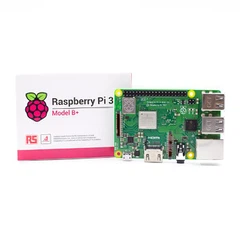


How does raspberry pi 5 desktop kit work?
Picture this: You tear open the box, and inside sits everything needed to build a fully functional computer. No hunting for compatible parts. No second-guessing power requirements. Just plug, boot, and go. That's the promise of the Raspberry Pi 5 Desktop Kit-but the reality runs much deeper than simple convenience.
The kit transforms a credit-card-sized circuit board into a surprisingly capable desktop computer. With a Broadcom BCM2712 processor running at 2.4GHz, 8GB of memory, and dual 4K display support, this $120 bundle delivers performance that would have cost thousands just a decade ago. But understanding how it works requires peeling back multiple layers: the hardware architecture, the boot sequence, the thermal management system, and the software ecosystem that ties everything together.
Here's what most guides won't tell you: the Desktop Kit isn't just a Raspberry Pi 5 with accessories thrown in a box. The components are specifically engineered to work as an integrated system. The 27W power supply delivers precise voltage regulation under load. The case includes a built-in cooling fan wired directly to the board's power management IC. The pre-loaded microSD card contains firmware optimizations that standard Raspberry Pi OS installations lack.
Let's break down exactly how each piece functions, where the system can stumble, and why certain design choices matter more than others.
The Brain: BCM2712 Processor Architecture
The Raspberry Pi 5's beating heart is Broadcom's BCM2712 system-on-chip, representing a three-generation leap from the Cortex-A72 cores in the Pi 4. This matters because Cortex-A76 architecture brings instruction-level improvements that translate to real-world speed gains.
Raw processing power breaks down like this: Four Cortex-A76 cores clocked at 2.4GHz, each with 512KB of L2 cache. A shared 2MB L3 cache sits above, reducing memory access latency. The VideoCore VII GPU handles graphics at 800MHz, supporting OpenGL ES 3.1 and Vulkan 1.2. Memory bandwidth peaks at 17GB/s through the LPDDR4X-4267 interface.
Numbers don't tell the full story. The CPU architecture enables out-of-order execution and better branch prediction. Translation: Your web browser feels snappier. Video decoding happens without frame drops. Running multiple applications simultaneously doesn't turn the system into molasses.
One detail rarely mentioned: The BCM2712 includes hardware cryptography extensions. These accelerate encryption operations, making the Pi 5 viable for security-focused projects like VPNs or encrypted storage servers. Previous Pi models handled these tasks in software, often maxing out CPU cores in the process.
The chip also integrates the RP1 I/O controller-Raspberry Pi's first custom silicon on a flagship product. This "southbridge" manages USB, Ethernet, GPIO, and PCIe interfaces. Why does this matter? Total USB bandwidth more than doubles compared to Pi 4. Transferring files to external drives no longer creates system-wide lag. Two cameras can operate simultaneously through the dual MIPI interfaces. These aren't hypothetical improvements; they reshape what projects become practical.

Power Delivery: Why The 27W Supply Isn't Negotiable
Power seems simple until it isn't. The Desktop Kit includes Raspberry Pi's official 27W USB-C power supply for one critical reason: the Pi 5 can demand up to 5 amps at 5 volts under full load.
Standard USB power adapters support 5V/3A maximum. Running intensive tasks-compiling software, processing video, training machine learning models-pushes current draw above 3 amps. An underpowered supply triggers voltage drops. The system detects this through onboard monitoring circuits and responds by throttling CPU clock speeds. Your Pi 5 suddenly performs like a Pi 4. Or worse, it crashes mid-task.
The DA9091 power management IC coordinates eight separate switch-mode supplies inside the Pi 5. A quad-phase core supply alone can deliver 20 amps to the processor. This aggressive approach keeps voltage stable when all four cores spike to 100% utilization simultaneously.
Real-world impact: Users attempting to run Pi 5 from standard power banks frequently encounter undervoltage warnings and system instability. Even high-capacity banks advertising 240W output often can't sustain 5V/5A-USB Power Delivery standard doesn't mandate this specific combination. The Pi 5 negotiates power via USB-PD protocols, but if the supply can't deliver what's requested, performance degrades.
Two solutions exist for portable scenarios. Third-party PD trigger boards convert 12V or 20V from USB-PD sources down to 5V/5A. Alternatively, running with underclocked settings reduces peak current draw, though this defeats the performance advantage of Pi 5 over earlier models.
The official supply eliminates these headaches. It's rated for continuous 5A delivery with built-in overcurrent protection. When the Desktop Kit documentation says "use the included power supply," that's engineering guidance, not marketing fluff.
Thermal Management: The Case's Hidden Intelligence
Crack open the Pi 5's case and you'll find more than aesthetic plastic. The design integrates passive cooling and active airflow in ways that directly impact system behavior.
A metal heatsink attaches to the BCM2712 through thermal interface material. Heat conducts away from the processor into aluminum fins. The 30mm fan-powered directly from the board's 5V rail-pulls air across these fins and exhausts through vents in the case sides.
Fan control happens automatically through firmware. Temperature sensors embedded in the BCM2712 die report real-time readings to the system. When temperatures exceed 50°C, the fan spins up. Below 45°C, it shuts off. This hysteresis prevents constant on-off cycling during moderate workloads.
Critical threshold: 80°C. Cross this line and the system throttles clock speeds to prevent thermal damage. The Cortex-A76 cores can tolerate 105°C maximum junction temperature, but thermal throttling kicks in well before reaching dangerous levels.
Without active cooling, intensive tasks push temperatures into throttling territory within minutes. The Pi 5 is the first Raspberry Pi where active cooling transitions from "nice to have" to "necessary for sustained performance." The Desktop Kit acknowledges this reality by building cooling directly into the standard configuration.
One quirk: Fan wire length sits at the absolute minimum needed for assembly. Route the cable incorrectly during case installation and it can pinch between components or disconnect entirely. Several users report assembly frustrations specifically around fan cable management. The trick: Connect the fan header before fully seating the Pi 5 in the case bottom.
Boot Sequence: From Power-On To Desktop
Press the power button. What happens in those first seconds reveals the system's layered architecture.
Stage 1: Bootloader (0-3 seconds)
The BCM2712 loads first-stage bootloader code from internal ROM. This code searches for bootable media-primarily the microSD card slot, but also USB and PCIe-attached storage if configured. The bootloader reads partition tables, locates the boot partition, and loads second-stage bootloader files.
EEPROM configuration controls boot behavior. Version mismatches between EEPROM firmware and OS images cause "unsupported OS" errors. Updating EEPROM through Raspberry Pi Imager resolves most boot failures, particularly on early Pi 5 units shipped with older bootloader versions.
Stage 2: Kernel Initialization (3-8 seconds)
Linux kernel loads into memory. Device drivers initialize hardware-USB controllers, Ethernet, GPIO, video output. The system detects connected peripherals and assigns logical addresses. You'll see the Raspberry Pi logo appear on screen as the framebuffer driver activates.
Stage 3: System Services (8-15 seconds)
Systemd brings up background services: networking daemons, audio systems, desktop environment components. The Desktop Kit's pre-loaded Raspberry Pi OS Bookworm includes optimizations here. Service startup order is tuned to prioritize display and input device initialization, getting you to a usable desktop faster.
Stage 4: User Session (15-25 seconds)
Desktop environment launches-typically LXDE or Wayland depending on OS version. Auto-login settings from first-boot configuration let you skip login prompts. The keyboard and mouse become responsive. Total cold boot time: typically under 30 seconds.
First boot takes longer. The system expands the filesystem to fill the entire microSD card, a process that can add 60-90 seconds. This happens once, automatically, during initial setup.

Storage Architecture: MicroSD Performance Characteristics
The Desktop Kit includes a 32GB microSD card pre-loaded with Raspberry Pi OS. Understanding how this storage interfaces with the system explains both capabilities and limitations.
The Pi 5 supports SDR104 mode-a high-speed transfer protocol pushing theoretical bandwidth to 104MB/s. Real-world performance depends on card quality. The included SanDisk or similar class 10 UHS-I card typically achieves 70-90MB/s sequential reads, 30-50MB/s writes.
Random access is where microSD struggles. Database operations, software compilation, and operating system housekeeping all generate random read/write patterns. Even high-quality cards deliver only 5-15 IOPS here. An NVMe SSD hitting the same workload would reach 50,000+ IOPS.
For basic desktop tasks-web browsing, document editing, media playback-microSD performance suffices. Power users quickly migrate to NVMe storage via the PCIe interface. The Pi 5's PCIe 2.0 x1 interface provides 500MB/s theoretical bandwidth, roughly 5-7x faster than microSD in practice.
The Desktop Kit doesn't include NVMe hardware, positioning it as an entry point rather than ultimate configuration. Adding a NVMe HAT and SSD costs an additional $50-80, pushing total system price toward $200-still competitive, but no longer the $120 impulse purchase.
Peripheral Integration: Keyboard, Mouse, and Display Connectivity
The official Raspberry Pi keyboard does double duty as USB hub. Three USB 2.0 ports on the keyboard back accept the mouse and additional peripherals. This reduces cable runs to the Pi itself while keeping frequently-accessed ports within easy reach.
Practical benefit: You can hotplug USB drives without reaching behind the Pi. The keyboard hub draws power from the Pi's USB port, which handles up to 1.2A total-sufficient for keyboard, mouse, and low-power peripherals like dongles or thumb drives.
Display output runs through two micro HDMI ports. "Micro" catches newcomers off guard. Standard HDMI cables won't fit. The kit includes two 1-meter micro HDMI to HDMI cables, supporting dual-monitor setups immediately. Both ports simultaneously drive 4K displays at 60Hz, though this pushes GPU and memory bandwidth limits under desktop workloads.
Single display? Use either port-they're functionally identical. Dual displays split desktop space horizontally by default. Configuration through raspi-config or desktop display settings allows custom arrangements, mirroring, or different resolutions per display.
Audio typically routes through HDMI. The Pi 5 lacks the 3.5mm jack found on earlier models. Bluetooth audio works but introduces slight latency-noticeable during video playback. USB audio adapters provide zero-latency alternative, though this consumes a USB port.
Software Ecosystem: Raspberry Pi OS and Beyond
The pre-loaded microSD card runs Raspberry Pi OS Bookworm, the Debian Linux variant optimized for Raspberry Pi hardware. "Bookworm" refers to Debian 12, released in 2023 with updated software packages and kernel.
Key pre-installed applications:
Chromium browser (web access)
LibreOffice (document editing)
Thonny Python IDE (coding environment)
Mathematica (computational software)
Minecraft Pi Edition (gaming/education)
Software installation happens through APT package manager or GUI Software application. The Raspberry Pi package repositories host thousands of applications. Command-line enthusiasts use sudo apt install [package-name]. GUI users browse recommendations through Preferences menu.
OS updates arrive regularly. Running sudo apt update && sudo apt upgrade downloads security patches and feature improvements. Major version upgrades (Bookworm to the next Debian release) require more careful planning, as they can break configurations or third-party software.
Alternative operating systems expand use cases. Ubuntu Server transforms the Pi into a headless server. RetroPie creates a retro gaming console. Home Assistant enables smart home control. The Pi 5's improved performance makes it the first Raspberry Pi truly viable as daily-driver desktop running standard Linux distributions.
First-Boot Configuration Wizard
Power on the Desktop Kit for the first time and you're greeted by a configuration wizard. This isn't mere hand-holding-it handles critical system setup that impacts long-term reliability.
Step 1: Locale settings select country, language, and timezone. Choosing incorrectly causes keyboard mapping errors (keys produce wrong characters) and incorrect system time.
Step 2: Password creation replaces the default "raspberry" password. Security best practice, given that the Pi might eventually connect to networks or run services.
Step 3: WiFi configuration connects to wireless networks. The Pi 5 includes dual-band 802.11ac WiFi supporting both 2.4GHz and 5GHz. Wired Gigabit Ethernet provides more reliable connectivity for stationary setups.
Step 4: Software updates downloads latest packages. This initial update can consume 10-20 minutes depending on network speed and number of package updates available. Skipping this step leaves known security vulnerabilities active.
Step 5: Reboot applies all settings. The system boots into configured state, ready for actual use.
Skip the wizard? Hit Cancel and configure manually later through Preferences. But the wizard catches common setup mistakes that create frustration hours or days down the line.
GPIO Access: Physical Computing Capabilities
The 40-pin GPIO header remains Raspberry Pi's signature feature. Desktop Kit case design provides direct access-no disassembly required.
GPIO pins serve multiple functions:
Digital input/output (3.3V logic)
PWM signal generation (motor control, LED dimming)
I2C communication (sensor interfacing)
SPI communication (display or ADC connection)
UART serial (console access, GPS modules)
Voltage warning: Pi GPIO operates at 3.3V. Connecting 5V signals directly can destroy the chip. Level shifters or voltage dividers protect against this, but many beginners learn this lesson the expensive way.
Python libraries like RPi.GPIO or gpiozero simplify programming. Turning on an LED connected to GPIO pin 17:
from gpiozero import LED led = LED(17) led.on()
C/C++ alternatives offer lower-level control for time-critical applications. The Desktop Kit positions Pi 5 as both desktop computer and embedded development platform-something typical PCs can't replicate.

Network Capabilities: Ethernet and WiFi Performance
Gigabit Ethernet on the Pi 5 finally achieves true gigabit speeds. Earlier Pis bottlenecked at 300-400Mbps due to USB 2.0 bus sharing. The Pi 5's dedicated Ethernet controller pushes 940Mbps practically achievable bandwidth.
Real-world transfer rates depend on network infrastructure. Gigabit switch, Cat5e or better cabling, and NAS or server capable of sustaining high throughput-all necessary for maximum performance. Transferring large files from a modern NAS can saturate the Ethernet link, limited only by storage speed.
WiFi 5 (802.11ac) delivers theoretical 433Mbps per spatial stream. Actual speeds range 150-300Mbps depending on router distance, interference, and negotiated connection rate. 5GHz band offers less interference than 2.4GHz but shorter range. Channel selection matters-overlapping channels in crowded environments cut throughput.
Bluetooth 5.0 handles peripherals and IoT device communication. Range extends approximately 50 meters line-of-sight, 10-15 meters through walls. Audio quality over Bluetooth remains acceptable for casual use but unsuitable for professional audio work due to latency and compression artifacts.
Common Setup Pitfalls and Solutions
Problem: Boot LED flashes 4 long, 5 short
Meaning: EEPROM bootloader incompatible with installed OS
Solution: Update EEPROM using recovery image from Raspberry Pi Imager
Problem: Undervoltage warning icon appears
Meaning: Power supply can't deliver sufficient current
Solution: Verify official 27W supply use, check USB-C cable quality, disconnect power-hungry USB devices
Problem: System freezes during video playback
Meaning: Inadequate cooling or memory overcommit
Solution: Verify fan operation, reduce video quality settings, close background applications
Problem: WiFi drops intermittently
Meaning: Power management disables WiFi during idle
Solution: Disable WiFi power save with sudo iw dev wlan0 set power_save off
Problem: Monitor not detected on micro HDMI port
Meaning: Cable quality or handshake failure
Solution: Try alternate cable, different port, add hdmi_force_hotplug=1 to /boot/config.txt
Problem: Keyboard types wrong characters
Meaning: Incorrect locale configuration
Solution: Run sudo raspi-config, select Localisation Options, configure keyboard layout
Performance Benchmarks: What Pi 5 Actually Delivers
Synthetic benchmarks paint one picture. Real-world performance tells another.
Geekbench 6 scores:
Single-core: ~390
Multi-core: ~1,100
For context, a 2019 MacBook Air (dual-core i5) scores ~1,150 single-core. The Pi 5 delivers roughly one-third single-threaded performance of budget laptop CPUs from five years ago. Multi-threaded tasks benefit from four cores, but clock speed and architecture differences still favor x86 processors for raw compute.
Web browsing responsiveness:
Opening 10 tabs in Chromium consumes approximately 2.5GB RAM. Sites with heavy JavaScript (Google Maps, Facebook, modern web apps) sometimes lag. Static content sites load instantly. Video streaming at 1080p plays smoothly. 4K streaming pushes system load higher, particularly with VP9 or AV1 codecs lacking hardware acceleration.
Software compilation:
Building small projects (1,000-5,000 lines of code) completes in seconds. Large codebases (Chromium, LibreOffice) take hours-viable, but painful. Cross-compilation on faster machines and transferring binaries provides better workflow for serious development.
Desktop productivity:
LibreOffice Writer handles documents up to 50-60 pages smoothly. Larger documents with embedded images introduce delays. Calc spreadsheets with thousands of rows and complex formulas tax the system. For typical use-essays, reports, simple data analysis-performance suffices.
Gaming capability:
Minecraft Pi Edition runs perfectly (it's optimized for older Pi hardware). RetroPie emulates consoles through PlayStation 1 era. Nintendo 64 emulation remains hit-or-miss. GameCube, Wii, or modern PC titles exceed hardware capabilities by wide margins.
The Pi 5 positions between smartphone and budget laptop in capability. Expecting MacBook Air performance leads to disappointment. Recognizing it costs one-tenth the price recalibrates expectations appropriately.
Expansion Possibilities: Beyond Desktop Use
The Desktop Kit provides launching point, not final destination. Hardware capabilities enable diverse projects:
Network-attached storage (NAS): Attach external drives via USB 3.0, install OpenMediaVault, share files across network. Gigabit Ethernet supports 100MB/s+ transfer speeds. Two USB 3.0 ports allow RAID configurations for redundancy.
Home automation controller: Run Home Assistant, integrate smart devices, create automation routines. Low power consumption (5-8W typical) means 24/7 operation costs pennies monthly.
Media center: Install Kodi, connect to TV, stream content from local network or internet services. Hardware video decoding handles 1080p effortlessly, 4K with limitations depending on codec.
Learning platform: Python programming, electronics experiments through GPIO, Linux system administration practice. The included Beginner's Guide walks through foundational concepts.
Retro gaming console: Add USB controllers, install RetroPie, load classic game ROMs. Performance handles 8-bit, 16-bit, and early 3D consoles without breaking a sweat.
PCIe interface unlocks advanced expansions: NVMe storage, AI accelerators, additional network interfaces. Third-party HATs enable features like PoE (Power over Ethernet), allowing single-cable deployment where running separate power proves difficult.
Cost-Benefit Analysis: Desktop Kit vs Custom Build
Desktop Kit price: ~$120 for 8GB model, complete package
Custom build equivalent: Pi 5 board ($80) + case ($8) + power supply ($12) + keyboard/mouse ($25) + cables ($8) + microSD ($10) = ~$143
What you gain with custom build:
Choice in peripherals (mechanical keyboards, gaming mice)
Higher-capacity storage (64GB+ microSD or NVMe)
Aluminum cases with better cooling
Flexibility to skip components you already own
What you lose:
Time researching compatible parts
Risk of compatibility issues
No integrated package warranty
Missing printed Beginner's Guide
For first-time buyers, the Desktop Kit's convenience justifies modest price premium. Experienced users with existing peripherals save money building custom configurations. Neither approach is wrong-priorities differ based on experience level and existing equipment.
Longevity and Support Expectations
Raspberry Pi Foundation commits to availability through January 2035-11 years from launch. Software support typically outlasts hardware availability.
OS updates arrive monthly with security patches, quarterly with feature additions. Major version transitions happen every 2-3 years as Debian releases new stable versions. Community support through forums and third-party documentation remains strongest of any single-board computer ecosystem.
Hardware lifespan depends on usage. Static desktop use poses minimal stress-expect 5+ years of reliable operation. 24/7 server applications with heavy I/O wear microSD cards within 1-2 years (NVMe storage lasts far longer). Thermal cycling from constant high-load use can degrade component solder joints over time, though this typically takes years to manifest.
The 8GB memory option future-proofs better than 4GB. Modern Linux distributions consume 1-2GB idle. Browsers easily consume 3-4GB with typical tab loads. The difference between usable and frustrating often hinges on having adequate RAM headroom.
Frequently Asked Questions
Can the Raspberry Pi 5 Desktop Kit replace my regular computer?
For basic tasks-web browsing, document editing, email, media consumption-yes, particularly if your current computer is 5+ years old. For professional work requiring Adobe Creative Suite, Microsoft Office with advanced features, or modern gaming, no. The Pi 5 excels as supplementary computer or learning platform but can't match dedicated desktop or laptop performance across all use cases.
Do I need programming knowledge to use the Desktop Kit?
No. The system boots to a graphical desktop like Windows or macOS. Point-and-click operation handles basic computing tasks. Programming support exists for those interested in learning, but it's optional, not required.
Can I run Windows on the Raspberry Pi 5?
Not standard Windows 10/11. Microsoft offers Windows IoT Core (extremely limited functionality) for Pi. Most users stick with Raspberry Pi OS (Linux-based) or other Linux distributions. Wine compatibility layer runs some Windows applications, but expect compatibility issues and reduced performance.
How loud is the cooling fan?
Barely audible. Typical noise level around 20-25 decibels-quieter than a whisper. Under maximum load, it might reach 30 decibels. Compare this to desktop PCs (40-50dB) or laptops under load (45-55dB).
Will my Pi 4 accessories work with Pi 5?
Some yes, some no. USB peripherals work fine. Pi 4 cases don't fit Pi 5 due to port layout changes. microSD cards transfer between models. Power supplies need upgrade-Pi 4's 15W supply insufficient for Pi 5. GPIO header remains identical, so HATs designed for earlier models typically work, though mechanically securing them might require adapter.
Can I use any USB-C cable for power?
No. The cable must support USB Power Delivery (PD) and handle 5A current. Many USB-C cables are rated for only 3A. Using underated cables causes voltage drop under load, leading to system instability. Use the included cable or purchase cables specifically marked "5A" or "100W/240W EPR."
Is the Desktop Kit suitable for children?
Yes, with supervision for younger children (under 10). The Beginner's Guide includes age-appropriate projects. Scratch programming environment offers visual coding accessible to elementary age kids. GPIO projects require adult oversight due to electrical components. Overall, it's one of the better platforms for teaching computing concepts to kids.
The Bottom Line
The Raspberry Pi 5 Desktop Kit delivers functional desktop computing at $120. Processing power reaches basic laptop levels from several years ago. The integrated nature eliminates compatibility hunting-everything works together out of box. For education, hobby projects, or secondary computer roles, it excels.
Performance limitations become apparent in professional workflows. Video editing, 3D rendering, heavy multitasking-these push beyond comfortable usage boundaries. Recognize it as specialized tool rather than universal computing solution.
What makes the kit valuable isn't raw specs-it's accessibility. An 11-year-old can assemble it. A retiree can learn programming on it. An engineer can prototype IoT devices with it. The Desktop Kit packages capability and possibility into one straightforward bundle.
For first-time Raspberry Pi buyers, the Desktop Kit is hard to beat. It removes decision paralysis about component compatibility while maintaining reasonable cost. Experienced users might prefer custom builds optimizing specific use cases, but beginners benefit enormously from the preselected, tested configuration.
Plug it in. Boot it up. Discover what's possible when computing becomes this approachable. That's how the Raspberry Pi 5 Desktop Kit works-not just technically, but practically.