



Which raspberry pi desktop kit suits offices?
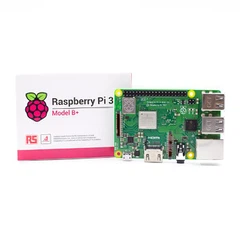
Raspberry Pi desktop kits for office environments depend largely on the specific use case - whether you're deploying thin clients for basic productivity applications, building dedicated workstations for specific tasks like digital signage or data entry terminals, or setting up development stations for IT staff working on embedded systems or IoT projects. The official Raspberry Pi Desktop Kit typically includes the single-board computer itself (Pi 4 Model B with 4GB or 8GB RAM being current standard as of late 2024), a power supply rated for 3A at 5.1V to handle the Pi 4's increased power draw under load, a case with integrated cooling (either passive heatsink or active fan depending on kit version), an official mouse and keyboard, HDMI cable, and usually a microSD card preloaded with Raspberry Pi OS; third-party kits may substitute components or add extras like additional storage, better peripherals, or specialty cases with GPIO access.

Performance expectations for office workloads
The Pi 4 Model B with 8GB RAM represents the current high-end for Raspberry Pi desktop use, featuring a Broadcom BCM2711 quad-core Cortex-A72 CPU running at 1.5GHz (1.8GHz with firmware overclock that's generally stable if cooling is adequate), VideoCore VI GPU capable of dual 4K display output at 30Hz or single 4K at 60Hz through the two micro-HDMI ports, gigabit Ethernet that actually achieves near-gigabit speeds unlike the Pi 3's USB-bottlenecked implementation, and USB 3.0 ports that deliver real performance improvements for external storage compared to the USB 2.0 limitations of earlier models. For typical office applications - web browsing with Chromium, LibreOffice document editing, email clients, PDF viewing - the 8GB model provides reasonably smooth experience assuming you're not running dozens of browser tabs simultaneously or working with enormous spreadsheets containing hundreds of thousands of rows with complex formulas.
Now here's the thing about RAM requirements - the 4GB Pi 4 costs about $55 versus $75 for the 8GB model (as of 2024 pricing), and for simple terminal applications or single-purpose workstations that run one or two applications, 4GB proves entirely adequate; I've deployed 4GB units as digital signage players running Chromium in kiosk mode displaying dashboards, and memory usage typically sits around 1.2-1.8GB including the OS overhead, leaving plenty of headroom. But for general-purpose desktop use where users might have LibreOffice Writer open alongside a spreadsheet, plus Firefox with 15-20 tabs (because everyone opens tabs and forgets about them), maybe Thunderbird for email, and some lightweight utilities running in the background, you'll push into swap on a 4GB unit pretty regularly, which causes performance degradation because swapping to SD card or even USB storage is orders of magnitude slower than RAM access.
Seen this play out at a nonprofit office in 2022 where they'd bought 15 of the 4GB Desktop Kits to replace aging Windows 7 machines that Microsoft had end-of-lifed, figured they'd save money on licensing and hardware simultaneously. Worked fine for the first few weeks while users were still being careful about their workflows, but within a month people were complaining about "slow computers" - turned out users were running 30-40 browser tabs, multiple LibreOffice documents, PDF viewers, and wondering why everything bogged down. Ended up having to upgrade 8 of the 15 units to 8GB models (which meant buying new Pi boards since RAM isn't user-upgradable), cost more in the end than just buying 8GB units initially.
Storage considerations beyond the included microSD
Most Raspberry Pi Desktop Kits ship with 16GB or 32GB microSD cards, which is technically sufficient for the OS and basic applications but becomes constraining quickly in actual office use where users accumulate documents, downloads, cached browser data, and email storage. The bigger problem with microSD cards isn't capacity but reliability and performance - consumer-grade SD cards weren't designed for the constant write cycling that occurs in a desktop OS environment (logging, temporary files, swap usage), and failure rates after 12-18 months of office use are surprisingly high, maybe 15-25% based on deployments I've been involved with. Class 10 or UHS-I rated cards are minimum requirement; UHS-3 or Application Class A1/A2 cards provide better random I/O performance which matters more for OS responsiveness than the sequential read/write speeds that manufacturers advertise prominently.
Better approach for office deployment involves booting from USB 3.0 SSD rather than microSD - the Pi 4 supports USB boot natively (required a firmware update initially but has been standard since late 2020), and a 120GB or 240GB SATA SSD in a USB 3.0 enclosure costs $25-40, delivers dramatically better performance and reliability compared to SD cards. Boot time drops from 45-60 seconds to 20-25 seconds, application launches feel snappier due to better random read performance, and SSD endurance ratings (typically 60-100 TBW for budget drives) far exceed what SD cards can handle. Some argue the cost negates the Raspberry Pi's affordability advantage, and there's truth to that - you're adding $30-35 to a $75 base Pi 4 8GB, plus another $15-20 for quality power supply and case if you're not using the official kit, puts you at $120-130 before peripherals, which starts approaching used business desktop pricing on the secondary market.

Peripheral quality matters more than people expect
The official Raspberry Pi keyboard and mouse included in the Desktop Kit are adequate but not exceptional - the keyboard uses membrane switches with mushy feel and fairly high actuation force, no key backlighting (not usually needed in office environments but some users want it), and a somewhat cramped layout with the function keys being smaller than standard; the mouse is a basic optical unit with 1000 DPI, acceptable tracking on most surfaces, and a somewhat lightweight construction that feels cheap compared to business-grade peripherals from Logitech or Microsoft. For casual use or temporary deployments these work fine, but for full-time office workers typing extensively, investing in better keyboards and mice improves user satisfaction considerably - maybe $25-35 per workstation for decent membrane or scissor-switch keyboards and $15-20 for better mice, which sounds like small money until you're outfitting 50 workstations and suddenly peripherals add $2000-2750 to the project budget.
There was this call center deployment in 2021 where the manager insisted on using the included peripherals to "keep costs down" - had 40 customer service reps using Pi-based terminals for their CRM system and soft-phone application. Within three months they were getting complaints about wrist pain and typing fatigue, turnover increased, and the manager finally relented on buying better keyboards (mechanical switches, ergonomic design) and vertical mice for the stations. Productivity metrics improved measurably after the peripheral upgrade, enough that the ROI on the better input devices paid back in about 5-6 months through reduced training costs for replacement hires and improved call handling times.
Display compatibility and limitations
The Pi 4's dual micro-HDMI output supports resolutions up to 4096×2160 at 60Hz on a single display or 4096×2160 at 30Hz on dual displays, which sounds impressive but comes with caveats - many common office monitors use DisplayPort rather than HDMI for their native connection, requiring active adapters that add $15-25 per display; micro-HDMI to standard HDMI cables or adapters are needed regardless (the kit usually includes one but not two if you want dual displays), and quality matters because cheap cables cause intermittent signal dropouts that are incredibly frustrating to troubleshoot. Maximum practical resolution for smooth desktop use sits around 1920×1080 (1080p) - you can drive 4K displays and text rendering looks sharp, but the GPU struggles rendering complex web pages or scrolling through large documents at 4K, creating noticeable lag that doesn't occur at 1080p.
Dual-monitor setups work but drain more power and generate more heat, which matters because the Pi 4 can thermal-throttle under sustained load if cooling isn't adequate - the official case includes a small heatsink but no active cooling, and the CPU will throttle from 1.5GHz down to 1.0GHz or even 0.6GHz when junction temperature hits 80-85°C, which happens fairly easily with dual displays running video playback or complex graphics rendering. The official case has poor ventilation by design (sealed to look clean), so adding an active cooling fan either through a different case or retrofitting a 30mm fan into the official case improves sustained performance noticeably; fans add noise though, maybe 25-30 dBA at 30cm distance, which some office workers find annoying in quiet environments.
Network and connectivity requirements
Gigabit Ethernet on the Pi 4 actually delivers 940-950 Mbps in practice (tested with iperf3), making it suitable for network-attached storage access or thin-client scenarios where the desktop is essentially a display terminal for server-hosted applications. The onboard WiFi (802.11ac dual-band) achieves 180-220 Mbps under good conditions with a strong signal, adequate for most office applications but insufficient for sustained large file transfers or high-quality video conferencing - if WiFi is the primary network connection, positioning matters significantly, and access points rated for higher client density work better than consumer routers that struggle when 20+ Pi devices connect simultaneously.
Bluetooth 5.0 onboard handles wireless keyboards and mice acceptably, but coexistence issues between WiFi and Bluetooth can cause problems - they share the 2.4GHz spectrum and the Pi's antenna design isn't optimized for simultaneous operation, so you might experience stuttering mouse cursor or keyboard input lag when WiFi is under heavy load on 2.4GHz channels. Using 5GHz WiFi or wired Ethernet eliminates this problem, or just use wired USB peripherals instead of Bluetooth (which has lower latency anyway, though it occupies USB ports).
Software ecosystem and application compatibility
Raspberry Pi OS (formerly Raspbian) is Debian-based Linux, which means access to vast repositories of open-source software through apt package management, but also means compatibility issues with proprietary Windows applications that many offices depend on - Microsoft Office doesn't run natively (LibreOffice serves as replacement but isn't 100% compatible with complex Office documents, particularly Excel spreadsheets with macros or advanced formatting), QuickBooks and most accounting software lacks Linux versions, Adobe Creative Suite doesn't exist for ARM architecture, and various industry-specific applications only target Windows or sometimes macOS. Wine and Box86 allow some x86 Windows applications to run on ARM Linux but performance is poor and compatibility spotty; better solutions involve either accepting the open-source alternatives (which works fine for many use cases), using web-based SaaS versions of applications (Office 365, Google Workspace, browser-based accounting systems), or deploying the Pis as thin clients connecting to Windows Terminal Services or Citrix environments where actual application execution happens on servers.
For offices that can standardize on open-source tools - LibreOffice for documents, Thunderbird or Evolution for email, Firefox or Chromium for web browsing, Gimp for basic image editing - the Raspberry Pi Desktop Kit works well and total cost per workstation runs $150-200 including the computer, decent peripherals, and SSD storage. For environments requiring Windows-specific software, the Pi becomes a thin-client terminal rather than a standalone desktop, which is perfectly viable but requires appropriate server infrastructure (Windows Server with Remote Desktop Services CALs, Citrix licensing, etc.) that may cost more than just buying standard Windows desktops unless you're outfitting 50+ workstations.
Power consumption and operational costs
The Pi 4 with typical office usage (display output, web browsing, document editing) draws 4-6 watts measured at the wall including the official power supply's conversion losses, compared to 65-120 watts for traditional desktop systems or 15-35 watts for small-form-factor business PCs. Over a year of business hours operation (2000-2200 hours annually assuming 40-hour weeks with some overtime), a single Pi saves roughly 100-200 kWh versus a standard desktop, which translates to $12-30 in electricity costs at typical US commercial rates ($0.12-0.15/kWh); not life-changing savings per workstation but adds up across larger deployments - 100 workstations saves $1200-3000 annually in power costs, plus reduced cooling load in the office (every watt of computer power becomes heat that the HVAC system must remove), though quantifying HVAC savings gets complicated because it depends on climate, building design, and existing cooling capacity utilization.
Lower power draw also means smaller UPS requirements - a 1500VA UPS that might support 4-5 traditional desktops for 5-8 minutes during power outages can handle 15-20 Raspberry Pi workstations for 20-30 minutes, providing more time for graceful shutdown or even ride-through of brief power interruptions. Some deployments use centralized UPS with distributed power, others use small USB battery packs (20,000-30,000 mAh capacity) as individual UPS units since the Pi draws so little power that a decent USB battery can keep it running for 4-6 hours.
Maintenance and support considerations
SD card failures are the primary maintenance issue - budget 15-20% annual failure rate based on typical office use patterns, which means stocking spare cards and having a process for rapid replacement and re-imaging becomes necessary. Using USB SSDs drops failure rate to maybe 2-5% annually (similar to traditional desktop storage), but failures still occur and support processes need to handle it. Image-based deployment using tools like Etcher or dd command allows rapid provisioning of replacement units, though this works best when workstations are relatively homogeneous in their software configuration; offices where each user has customized their system significantly face longer recovery times when hardware fails.
The Pi's ARM architecture means you can't just pull a hard drive from a failed unit and mount it in another x86 desktop for data recovery like you could with traditional PCs - need another ARM system or x86 system with appropriate kernel modules to access ext4 filesystems, which IT staff may not have readily available. Regular backups become more critical, though many office users neglect this regardless of what hardware they're using; mandatory network home directories or cloud storage (Nextcloud, company NAS, or commercial solutions like Dropbox/OneDrive) mitigate data loss risks but require infrastructure and ongoing administration.
Realistic deployment scenarios
Small businesses (5-15 employees) doing web-based work, document creation, email, and light spreadsheet use can standardize on Raspberry Pi Desktop Kits successfully if they accept open-source software limitations and have IT-literate staff or access to Linux-familiar support. Cost savings versus buying commercial business desktops runs $200-400 per workstation initially plus reduced ongoing power costs, which matters for price-sensitive operations or nonprofits with tight budgets.
Larger organizations (50+ employees) make sense when deploying Pis as thin clients or single-purpose terminals rather than general-purpose desktops - warehouse inventory terminals running web-based WMS systems, manufacturing floor stations accessing MES applications, retail point-of-sale terminals using browser-based POS software, reception desk computers that only need calendar and phone system access. Standardization and centralized management become more important at scale, and tools like Ansible, Puppet, or even simple bash scripts for fleet configuration help manage dozens or hundreds of units; some organizations boot Pis from network using PXE boot to eliminate local storage entirely, though this requires appropriate network infrastructure and introduces single points of failure.
Educational institutions deploy Raspberry Pi Desktop Kits extensively - computer labs where students learn programming or system administration, library catalog terminals, digital signage systems, and classroom presentation computers all work well with Pi hardware. The educational pricing and lower theft appeal (who steals a $75 computer when there are $800 laptops nearby?) make them attractive for schools, though again the open-source software limitation means applications must fit the available ecosystem.
See, the mistake organizations make most frequently is treating the Raspberry Pi as a direct drop-in replacement for Windows desktops without considering workflow implications - buying 30 Desktop Kits, setting them up on users' desks, and expecting everything to "just work" the way it did before. Then users discover their Excel spreadsheets don't import properly into LibreOffice Calc, or the company's proprietary database application has no Linux client, or the label printer requires Windows-only drivers, and IT ends up scrambling to fix problems that should have been identified during pilot testing. Better approach involves pilot deployment with 3-5 representative users across different roles, running for 30-60 days to identify issues before committing to full-scale rollout, but management often resists pilot programs because they want to see cost savings immediately rather than spending time on "unnecessary" testing.
The Raspberry Pi 400 variant - keyboard with integrated Pi 4 4GB in a compact form factor - deserves mention as an alternative to the traditional Desktop Kit setup; it costs $70 for the board alone or $100 for a complete kit with mouse, power supply, cables, and SD card. Office deployment of Pi 400 units simplifies cable management (one less device cluttering the desk) and provides adequate performance for basic office tasks, though the 4GB RAM limitation means you hit memory constraints sooner than with an 8GB Pi 4, and the keyboard itself is non-replaceable - if coffee gets spilled into it (which happens in offices despite "no drinks near computers" policies), you're replacing the entire computer rather than just a $25 keyboard. Repair economics favor traditional Pi 4 + separate keyboard for most office scenarios despite the Pi 400's elegance.
Which Raspberry Pi Desktop Kit suits offices ultimately depends on whether the office applications can run satisfactorily on Linux/ARM architecture (or can be accessed via browser/thin-client), whether cost savings justify the limitations compared to traditional desktops, and whether IT support staff have Linux experience or willingness to develop it. For basic productivity tasks in price-sensitive environments with appropriate software stacks, the Pi 4 8GB Desktop Kit or equivalent third-party offerings provide viable workstations at $150-200 fully configured; for Windows-dependent workflows, Pi-based thin clients at $120-140 each connecting to server infrastructure make sense at scale but require different architectural approach than standalone desktops.